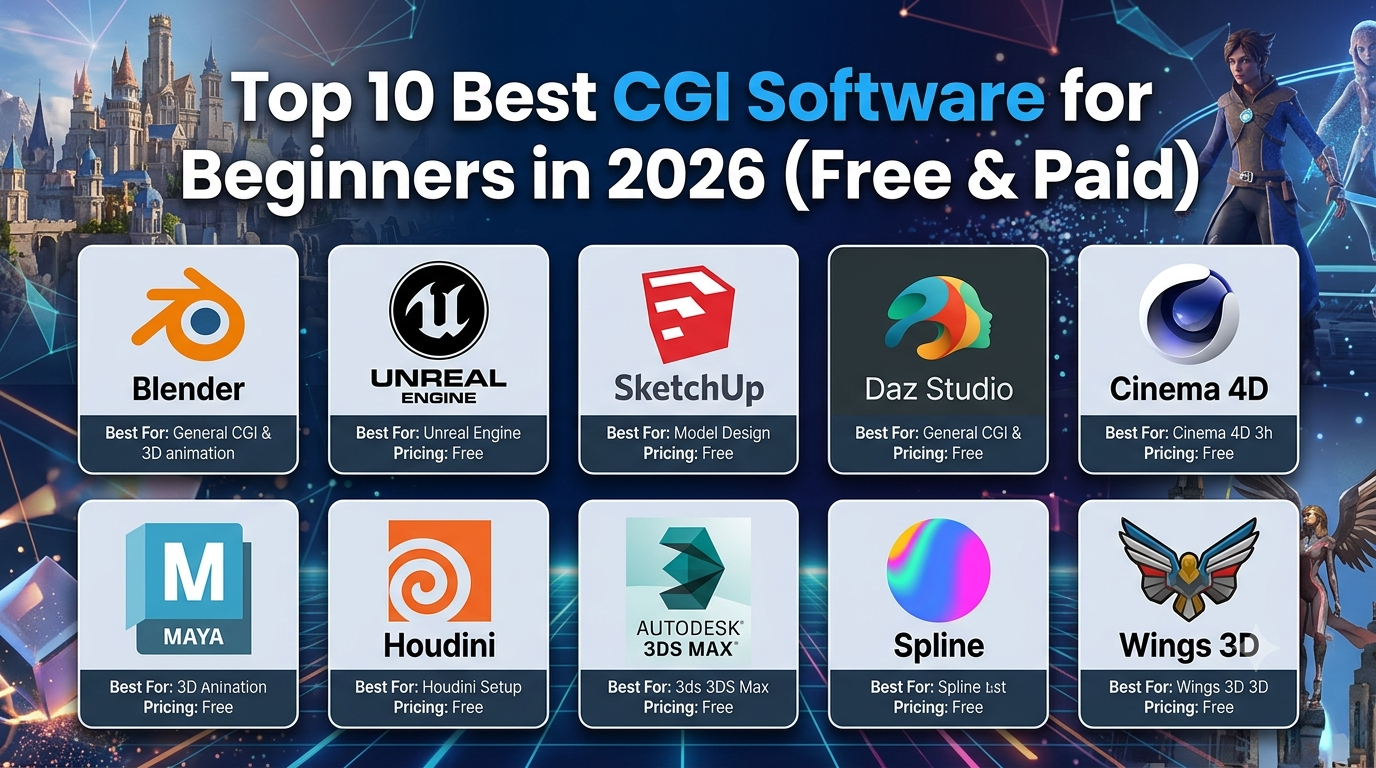
If you have ever watched a Marvel movie, played a realistic video game, or seen a product advertisement where a bottle floats in the air with perfect lighting, then you probably have seen CGI in action.
CGI stands for Computer-Generated Imagery. In more simple words, it is the process of creating images, objects, characters & environments using a computer. It is used in movies, video games, product advertisements, architecture, and even social media content.
But here is the thing: getting started with CGI can feel confusing. No doubt, there are dozens of 3D modeling programs, animation tools & rendering engines, and some of them cost a small fortune.
The good news? You do not need expensive software to start creating impressive 3D work. Some of the best CGI software for beginners is completely free, while paid options can make sense when you need specific professional tools.
In this guide, we will compare at least 10 CGI programs based on their main uses, learning curve, pricing & limitations. Whether you want to create realistic product renders, animated characters, or cinematic environments, you will find an option that actually fits your goals.
Quick Comparison: Best CGI Software in 2026
| Software | Best For | Pricing | Learning Curve |
| Blender | General CGI & 3D animation | Free | Moderate |
| Unreal Engine | Real-time CGI & game environments | Free to start; terms apply | Moderate |
| SketchUp | Architecture & interior design | Free & paid plans | Easy |
| Daz Studio | Realistic 3D characters | Free; optional paid assets | Easy to moderate |
| Cinema 4D | Motion graphics & product ads | Paid subscription | Moderate |
| Autodesk Maya | Professional character animation | From $168/month with annual billing | Difficult |
| Houdini | Visual effects & simulations | Free learning edition; paid options | Difficult |
| Autodesk 3ds Max | Architectural visualization | Paid subscription | Moderate to difficult |
| Spline | Interactive web-based 3D design | Free & paid plans | Easy |
| Wings 3D | Basic 3D modeling | Free | Easy to moderate |
Pricing is in U.S. dollars where applicable. Prices, plan features & licensing terms can change. So before purchasing, check official websites.
1. Blender — Best Overall CGI Software for Beginners
If you are starting from zero, Blender is where I would suggest looking first. It is free, open-source, and surprisingly powerful for a program that does not require a subscription.
Blender lets you model objects, create materials, set up lighting, animate characters & render finished scenes. Additionally, you can even create short animated films without buying another major 3D application.
Key features
- 3D modeling, sculpting & texturing.
- Character rigging & animation.
- Cycles for path-traced rendering & Eevee for real-time rendering.
- Simulations, visual effects & compositing.
- A large community & plenty of tutorials.
Pros of using Blender
- Completely free to download and use.
- Suitable for many commercial projects under its license.
- Available for Windows, macOS & Linux.
- Useful for everything from simple objects to complex animations.
Cons of using Blender
- The interface can overwhelm first-time users.
- Complex scenes can require powerful hardware.
- Advanced workflows take time to learn.
Pricing: Free.
Who should choose it? Beginners, students, freelancers, indie game developers, and anyone looking for free CGI software.
My take: I must say, Blender is the best starting point for most people. You can learn the fundamentals & build a portfolio without paying for software. The only catch is that you will need patience, especially during your first few projects.
Official website: https://www.blender.org/
Also Read – 10 Best Free 3D Animation Software for Beginners in 2026
2. Unreal Engine — Best for Real-Time CGI
Do you want to create a realistic city, a cinematic landscape, or an interactive world? Unreal Engine is worth exploring. Its main advantage is real-time rendering, which allows you to see many lighting & scene changes almost immediately. This makes it useful for video games, virtual production, architectural walkthroughs & cinematic sequences.
Also, you can import models from Blender and use Unreal Engine to build detailed environments around them.
Pros of Using Unreal Engine
- Impressive real-time visuals.
- Excellent for games & cinematic environments.
- Free to get started under its licensing terms.
- Works alongside other 3D creation tools.
Cons of Using Unreal Engine
- Can be demanding on your computer.
- Takes time to understand its interface and workflows.
- Not the easiest tool for learning modeling from scratch.
Pricing: Free to start. Certain game products are subject to a 5% royalty on qualifying lifetime gross product revenue above $1 million. Other uses may have different terms.
Who should choose it? Game developers, environment artists, virtual production creators & people interested in real-time CGI.
My take: I suggest learning basic 3D modeling first, then explore Unreal Engine if you want to create interactive environments or cinematic scenes.
Official website: https://www.unrealengine.com/
3. SketchUp — Best for Architecture & Interior Design

It is obvious that not everyone wants to create movie monsters or animated characters. Maybe you want to design a house, plan a bedroom, or visualize a building before construction begins.
And that is where SketchUp shines. Its straightforward modeling workflow makes it relatively easy to create rooms, furniture, building layouts & architectural concepts.
Pros of Using SketchUp
- It is a beginner-friendly modeling tool.
- Useful for architecture & interior design.
- A library of reusable 3D models.
- Practical for visualizing real-world spaces.
Cons of Using SketchUp
- It is not designed for advanced character animation.
- Photorealistic rendering may require additional tools.
- Some professional features require paid plans.
Pricing: Alongside paid plans, free web-based access is available with limitations. For current rates, check the official U.S. pricing page.
Who should choose it? Architecture students, interior designers, furniture designers & homeowners planning renovations.
My take: See, if your goal is to visualize a home or interior, SketchUp may be easier to approach than a full CGI suite. For broader 3D modeling & animation, Blender offers more flexibility.
Official website: https://www.sketchup.com/
Also Read – Toonly vs. Doodly: Which Animation Software Is Right for You in 2026?
4. Daz Studio — Best for Realistic 3D Characters
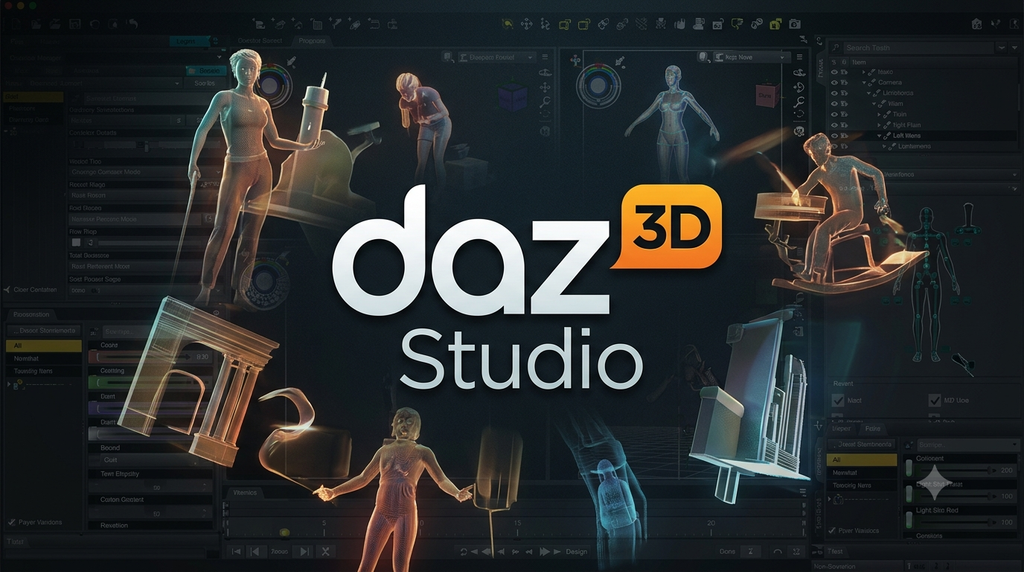
Creating realistic human characters from scratch takes considerable practice. And Daz Studio gives beginners another route by letting them work with existing 3D figures & customize their appearance.
You can pose characters, add clothing and props, arrange scenes & create images for digital artwork, illustrations & storytelling.
Pros of Using Daz Studio
- It makes character-based CGI more accessible.
- Ready-made figures reduce modeling work.
- Useful for portraits & fantasy artwork.
- Free software with optional paid content.
Cons of Using Daz Studio
- Premium assets can become expensive.
- Less suitable for learning general-purpose modeling.
- Realistic rendering still requires practice.
- Asset licensing needs checking for commercial work.
Pricing: It is free, with optional paid characters, props & other assets.
Who should choose it? Digital artists, illustrators & beginners interested in realistic characters.
My take: You should choose Daz Studio if characters are your main focus. But if you want to build objects from scratch & learn the complete 3D workflow, Blender is a better all-round choice.
Official website: https://www.daz3d.com/daz-studio
5. Cinema 4D — Best for Motion Graphics & Product CGI
Have you seen those polished 3D logos, animated product ads & stylish graphics you see in commercials? Cinema 4D is commonly used for this type of work.
Its MoGraph tools help creators produce animated typography, repeating patterns, moving objects & visually appealing motion graphics. Cinema 4D also integrates with Adobe After Effects workflows.
Pros of Using Cinema 4D
- It is a strong motion-graphics tool.
- Useful for animated logos & product advertisements.
- Professional workflow for creative studios.
- Redshift integration is available through relevant Maxon plans.
Cons of Using Cinema 4D
- Paid subscription.
- It can be expensive for hobbyists.
- Advanced animation & simulations take practice.
Pricing: A paid subscription is available. For pricing & included features, check Maxon’s current U.S. plans.
Who should choose it? Motion designers, video editors, advertising creatives & freelancers producing 3D advertisements.
My take: Practically, Cinema 4D makes sense if you already know you want to work in motion design. But if you are still exploring CGI, Blender lets you experiment without committing to a subscription.
Official website: https://www.maxon.net/en/cinema-4d
6. Autodesk Maya — Best for Professional Character Animation
If your long-term goal is working on animated films, television productions, or major game projects, then Maya deserves a look.
It is a professional 3D application known for character rigging, animation, modeling & visual effects. Its extensive toolset is powerful, but beginners may find it harder to learn than Blender.
Pros of Using Autodesk Maya
- Advanced character rigging & animation.
- It is suitable for complex production workflows.
- Strong relevance to professional animation & VFX roles.
- Extensive documentation & learning resources.
Cons of Using Autodesk Maya
- It is expensive compared with free alternatives.
- Steeper learning curve.
- More than most hobbyists need at the beginning.
Pricing: Autodesk lists Maya at $168 per month with annual billing in the U.S. Monthly billing is more expensive. Eligible students & educators may qualify for educational access.
Who should choose it? Aspiring character animators, technical artists & people preparing for professional animation or VFX pipelines.
My take: I suggest you do not buy Maya just because you have heard that professional studios use it. Learn the fundamentals first, then check job listings for your target career to see whether Maya is a useful investment.
Official website: https://www.autodesk.com/products/maya/overview
Also Read – Best Stop Motion Animation Software for Mac & Windows in 2026
7. Houdini — Best for Visual Effects & Simulations
Are you interested in creating smoke, fire, explosions, flowing water, or collapsing buildings? Houdini is one of the strongest options for procedural visual effects.
Its node-based workflow lets you build systems that can be adjusted & reused. Rather than manually creating every element, you can define operations & parameters to generate complex results.
Pros of Using Houdini
- Powerful simulation & effects tools.
- Flexible procedural workflows.
- It is useful for film, television & game VFX.
- Free learning edition available.
Cons of Using Houdini
- Steep learning curve.
- Node-based workflows require practice.
- Its complex simulations can demand substantial computing power.
- The free edition has non-commercial restrictions.
Pricing: Houdini Apprentice is free for learning & personal non-commercial projects. For commercial work, paid licenses are available.
Who should choose it? Aspiring VFX artists, technical artists & simulation specialists.
My take: Houdini is excellent for a specific goal, but I would not recommend it as everyone’s first CGI program. One should learn basic modeling & lighting before moving into procedural effects.
Official website: https://www.sidefx.com/
8. Autodesk 3ds Max — Best for Architectural Visualization
3ds Max is particularly useful for architectural visualization, interior scenes & detailed product modeling.
Imagine creating a virtual living room with realistic furniture, materials, sunlight & carefully arranged lighting. That is the kind of work where 3ds Max can be a good fit.
Pros of Using 3ds Max
- Strong architectural visualization capabilities.
- It is a detailed modeling tool.
- Professional materials & lighting workflows.
- Extensive plugin support.
Cons of Using 3ds Max
- It requires a paid subscription.
- Primarily a Windows desktop workflow.
- Advanced features take time to master.
- May be unnecessary for simple modeling projects.
Pricing: A paid subscription is available. For the current rate, check Autodesk’s official U.S. pricing page.
Who should choose it? Architectural visualization artists, interior designers & professionals working in studios that use 3ds Max.
My take: I would say, for simple room layouts, SketchUp is easier to approach. But for advanced visualization, compare 3ds Max with Blender before paying for a subscription.
Official website: https://www.autodesk.com/products/3ds-max/overview
9. Spline — Best for Interactive 3D Web Design
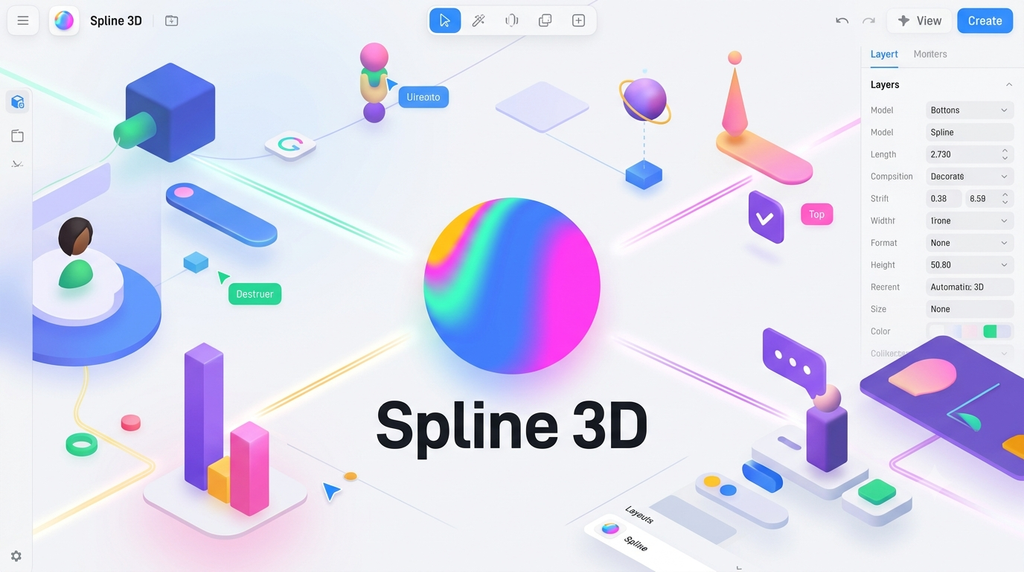
Spline takes a different approach to CGI. It focuses on accessible 3D design for websites, digital presentations & interactive web experiences.
Its browser-based workflow lets you create 3D scenes & interactions without immediately learning a large desktop application.
Pros of Using Spline
- Easy to start experimenting with.
- It is useful for interactive website elements.
- Browser-based workflow.
- It is convenient for web and UI designers.
Cons of Using Spline
- It is not a complete replacement for advanced CGI software.
- Free-plan limitations may affect your workflow.
- Complex scenes may require specialized tools.
- Performance depends on your device & project.
Pricing: Both free & paid plans are available; for current features & limits, check the official website.
Who should choose it? Web designers, UI designers, creative freelancers & beginners interested in interactive 3D.
My take: Spline is a useful option for websites & interactive presentations. For animated films or detailed character modeling, Blender is a stronger starting point.
Official website: https://spline.design/
10. Wings 3D — Best for Basic 3D Modeling
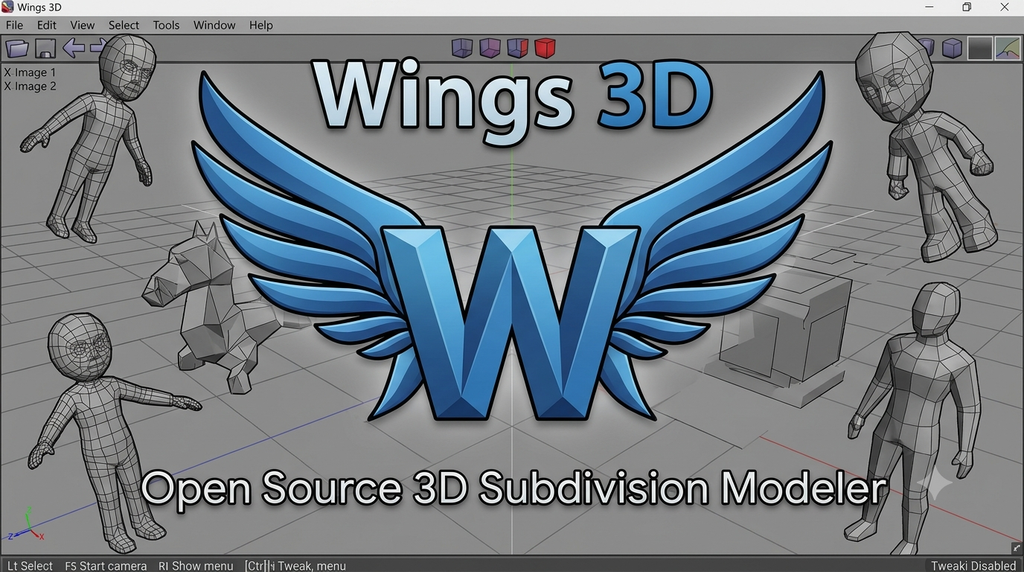
Sometimes, you do not need hundreds of features. You just want to understand how vertices, edges & faces fit together to create a 3D object.
Wings 3D is a free, open-source subdivision modeler focused primarily on polygon modeling. Its narrower scope can make it useful for learning basic modeling without tackling a complete animation pipeline.
Pros of Using Wings 3D
- It is free & open-source.
- It is useful for learning modeling fundamentals.
- Focused interface.
- Suitable for simple modeling exercises.
Cons of Using Wings 3D
- It is not a complete animation or VFX suite.
- Smaller ecosystem than Blender.
- Limited all-in-one production features.
- Advanced rendering may require other software.
Pricing: It is free to use.
Who should choose it? Hobbyists & beginners who want to focus on basic polygon modeling.
My take: I would say Wings 3D is worth considering for simple modeling, but Blender is the better long-term choice for most beginners because it also supports animation, lighting, rendering & compositing.
Official website: http://www.wings3d.com/
Bonus: Should Beginners Try AI-Powered 3D Tools?
In 2026, AI-assisted 3D creation is another area worth exploring. Some tools can help generate 3D assets from text prompts or images, potentially saving time during early concept development.
These tools can be useful when you want a starting point for a game asset, prop, or background object. But generated models may need cleanup, retopology, better textures, or adjustments before they are ready for a professional project.
My suggestion is to treat AI-generated assets as a shortcut for certain tasks, not a replacement for understanding 3D fundamentals. Check the tool’s current terms and the rights associated with the input & output before using any generated asset commercially.
Which CGI Software Should You Choose?
| Your Goal | Recommended Software | Why |
| Learn CGI without spending money | Blender | Broad features & free access |
| Create game environments | Unreal Engine | Real-time rendering |
| Design houses & interiors | SketchUp | Accessible architectural modeling |
| Create realistic characters | Daz Studio | Ready-made figures & posing |
| Make animated advertisements | Cinema 4D | Motion-graphics workflow |
| Become a character animator | Maya | Advanced rigging & animation |
| Create explosions & simulations | Houdini | Procedural visual effects |
| Create architectural renders | 3ds Max | Detailed visualization tools |
| Add 3D to websites | Spline | Interactive browser-based design |
| Learn basic polygon modeling | Wings 3D | Focused modeling tools |
Free vs. Paid CGI Software: Is Paying Worth It?
Honestly, paying for software does not automatically make your CGI look better. Modeling, lighting, materials, composition & practice matter much more when you are starting out.
| Factor | Free Software | Paid Software |
| Learning the basics | Excellent | Excellent |
| Starting on a tight budget | Best choice | Requires planning |
| Specialized professional workflows | Depends on the tool | Often more options |
| Support | Community resources vary | Depends on the plan |
| Commercial use | Check the license | Check the subscription terms |
| Long-term value | Excellent when it meets your needs | Good when it solves a real problem |
Remember one thing: Free does not always mean unrestricted. Some learning editions limit commercial use, output resolution, or features. Check the license for the software and any models, textures, plugins, or assets you use.
What Computer Do You Need for CGI?
In my opinion, you do not necessarily need an expensive workstation to start learning CGI, but your hardware matters more as projects become larger and more detailed.
| Component | Practical Beginner Recommendation |
| Operating system | Windows or macOS, depending on software support |
| Processor | Modern 6-core CPU or equivalent |
| RAM | 16 GB for basic work; 32 GB is preferable for larger projects |
| Graphics card | A dedicated GPU with around 8 GB of VRAM is a useful target for GPU-heavy work |
| Storage | SSD with 512 GB or more if possible |
| Display | 1080p monitor |
These are practical guidelines rather than universal minimum requirements. Before purchasing a computer, check the software’s supported hardware & renderer compatibility.
Final Verdict: Which CGI Software is Worth Starting With?
If I were starting CGI from scratch in 2026, I would definitely begin with Blender. It costs nothing, supports a wide range of creative projects, and gives you room to develop your skills before paying for specialized software.
I would start with three small projects:
Project 1: Create a coffee mug or water bottle to practice modeling, materials & lighting.
Project 2: Build a small bedroom or outdoor scene to understand textures, shadows & composition.
Project 3: Animate a rotating product or bouncing ball to learn keyframes, timing & rendering.
After that, your next step becomes clearer. If you enjoy interactive worlds, explore Unreal Engine. If architecture is your thing, try SketchUp. If you want character animation, consider Maya. Houdini could be worth exploring if you become fascinated by simulations.
The biggest mistake is assuming you need expensive software to become a good CGI artist. Actually, you do not need one. Choose one program, practice consistently, and finish projects instead of spending weeks comparing tools.
My overall winner is Blender for most beginners. It’s free, versatile, and capable enough to support your growth for years. The best CGI software, however, is the one that fits your goals and that you’re willing to learn properly.
Start small, keep experimenting, and don’t worry if your first renders look rough. Everybody starts somewhere.